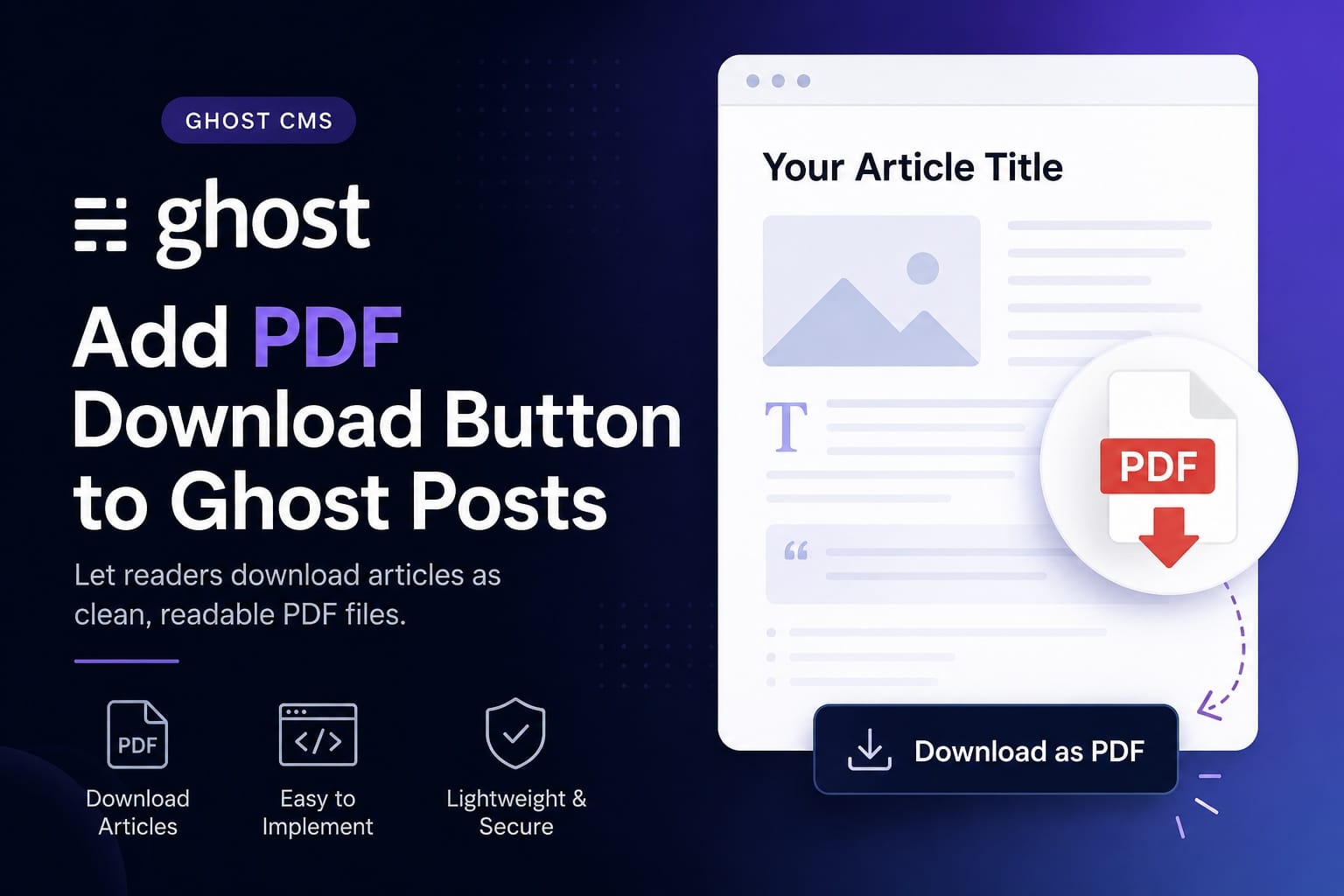
Ghost is one of the best publishing platforms available today, but there are times when publishers need functionality beyond what comes out of the box.
One feature we are frequently asked about is the ability to allow readers to download articles as PDF files. Whether you're publishing research reports, educational content, premium membership articles, whitepapers, or long-form magazine content, downloadable PDFs can provide a much better reading experience for users who want offline access.
Recently, we implemented a custom PDF generation feature for a Ghost publication that allowed readers to download any article directly from the post page. The solution is lightweight, requires no server-side processing, and can be integrated into most Ghost themes with minimal modifications.
In this guide, we'll walk through the complete implementation.
Why Add PDF Downloads to Ghost?
While Ghost allows content to be shared, bookmarked, and distributed through newsletters, there is currently no built-in feature for exporting individual posts as PDF files.
Adding PDF downloads can be useful for:
- Research publications
- Educational websites
- Digital magazines
- Premium membership content
- Whitepapers and reports
- Documentation sites
- Long-form editorial content
For membership-driven publications, downloadable PDFs can also become an additional premium feature for paid subscribers.
How This Solution Works
The implementation uses JavaScript and the jsPDF library to generate a PDF directly in the visitor's browser.
The workflow is simple:
- The visitor clicks a "Download as PDF" button.
- JavaScript extracts the article content.
- The content is formatted for PDF output.
- jsPDF generates the document.
- The PDF is automatically downloaded.
Because everything happens in the browser, there is no need to generate or store PDF files on your server.
Open your Ghost theme's post.hbs file and place the following code where you would like the download button to appear.
<div class="pdf-download-container">
    <button id="downloadPdfBtn" class="pdf-download-btn" type="button">
        Download as PDF
    </button>

    <div id="pdfLoading" class="pdf-loading" hidden>
        Generating PDF, please wait...
    </div>

    <div id="pdfSuccess" class="pdf-success" hidden>
        PDF downloaded successfully.
    </div>
</div>
Most publishers place this button either below the article header or at the bottom of the article.
Step 2: Add a Dedicated Content Wrapper
To ensure the script can reliably identify your article content, wrap the Ghost content in a dedicated container.
<section id="postContent" class="gh-content gh-canvas">
    {{content}}
</section>
The ID is important because the JavaScript will use it to extract content from the page.
Step 3: Add Styling
Add the following CSS to your theme.
.pdf-download-container {
    margin: 32px 0;
    text-align: center;
}

.pdf-download-btn {
    cursor: pointer;
    padding: 12px 18px;
    border: 0;
    border-radius: 6px;
    font-weight: 600;
}

.pdf-loading,
.pdf-success {
    margin-top: 10px;
    font-size: 14px;
}

.pdf-success {
    color: #238636;
}
You can style the button however you like to match your Ghost theme.
Step 4: Load jsPDF
Add the jsPDF library before your closing </body> tag.
<script src="https://cdnjs.cloudflare.com/ajax/libs/jspdf/2.5.1/jspdf.umd.min.js"></script>
jsPDF is responsible for creating the PDF document in the browser.
Step 5: Add the PDF Generation Script
The following script extracts content from your Ghost post and converts it into a downloadable PDF.
<script>
document.addEventListener('DOMContentLoaded', function () {
    const button = document.getElementById('downloadPdfBtn');
    const loading = document.getElementById('pdfLoading');
    const success = document.getElementById('pdfSuccess');

    if (!button) return;

    button.addEventListener('click', generatePDF);

    async function generatePDF() {
        const { jsPDF } = window.jspdf;

        loading.hidden = false;
        success.hidden = true;
        button.disabled = true;

        try {
            const postTitle = document.querySelector('h1')?.textContent?.trim() || document.title;
            const postContent = document.getElementById('postContent');
            const siteName = document.querySelector('meta[property="og:site_name"]')?.content || window.location.hostname;

            if (!postContent) {
                throw new Error('Post content wrapper not found.');
            }

            const pdf = new jsPDF();
            const margin = 20;
            const pageWidth = pdf.internal.pageSize.getWidth();
            const pageHeight = pdf.internal.pageSize.getHeight();
            const maxWidth = pageWidth - margin * 2;
            let y = margin;

            pdf.setProperties({
                title: postTitle,
                subject: 'Article',
                creator: siteName
            });

            pdf.setFont('helvetica', 'bold');
            pdf.setFontSize(18);

            const titleLines = pdf.splitTextToSize(postTitle, maxWidth);
            pdf.text(titleLines, margin, y);
            y += titleLines.length * 8 + 10;

            pdf.setFont('helvetica', 'normal');
            pdf.setFontSize(10);
            pdf.text(`Source: ${window.location.href}`, margin, y);
            y += 12;

            pdf.setDrawColor(200, 200, 200);
            pdf.line(margin, y, pageWidth - margin, y);
            y += 12;

            const blocks = postContent.querySelectorAll('h2, h3, h4, p, blockquote, li');

            blocks.forEach(function (block) {
                const text = block.textContent.replace(/\s+/g, ' ').trim();
                if (!text) return;

                const tag = block.tagName.toLowerCase();

                if (tag === 'h2') {
                    pdf.setFont('helvetica', 'bold');
                    pdf.setFontSize(15);
                    y += 6;
                } else if (tag === 'h3') {
                    pdf.setFont('helvetica', 'bold');
                    pdf.setFontSize(13);
                    y += 5;
                } else if (tag === 'blockquote') {
                    pdf.setFont('helvetica', 'italic');
                    pdf.setFontSize(11);
                } else {
                    pdf.setFont('helvetica', 'normal');
                    pdf.setFontSize(11);
                }

                const prefix = tag === 'li' ? '• ' : '';
                const lines = pdf.splitTextToSize(prefix + text, maxWidth);

                lines.forEach(function (line) {
                    if (y > pageHeight - margin) {
                        pdf.addPage();
                        y = margin;
                    }

                    pdf.text(line, margin, y);
                    y += 6;
                });

                y += 4;
            });

            const safeFilename = postTitle
                .toLowerCase()
                .replace(/[^a-z0-9]+/g, '-')
                .replace(/(^-|-$)/g, '');

            pdf.save(`${safeFilename || 'article'}.pdf`);

            success.hidden = false;
        } catch (error) {
            alert('Could not generate the PDF. Please try again.');
            console.error(error);
        } finally {
            loading.hidden = true;
            button.disabled = false;

            setTimeout(() => {
                success.hidden = true;
            }, 3000);
        }
    }
});
</script>
What This Script Supports
This implementation automatically handles:
- Article titles
- Paragraphs
- H2 headings
- H3 headings
- H4 headings
- Lists
- Blockquotes
- Multi-page PDFs
- Automatic file naming
- Source URL attribution
For many publishers, this is more than enough to create a useful downloadable version of an article.
Possible Improvements
Depending on your requirements, you can extend the implementation to support:
Feature Images
Feature images can be embedded directly into the PDF before the article content begins.
You can pull Ghost author data and include it in the PDF header.
Publication Dates
Many publishers choose to include publication dates underneath the article title.
Membership Restrictions
Ghost's membership visibility features can be used to display the PDF download button only to paid subscribers.
Custom Branding
You can add your publication logo, colors, and custom footer information to create branded PDF exports.
When Should You Use This?
This approach works particularly well for:
- Research websites
- Think tanks
- Educational publishers
- Membership communities
- Industry reports
- Premium newsletters
- Digital magazines
Because the PDFs are generated on demand, there is no additional storage overhead and no need for a separate PDF generation service.
Final Thoughts
Ghost gives publishers a powerful foundation, but many growing publications eventually need custom functionality tailored to their audience.
Adding PDF downloads is a relatively small enhancement that can significantly improve accessibility, reader convenience, and the value of premium content.
With a few template modifications and a lightweight JavaScript library, you can give readers the ability to save and archive your articles directly from your Ghost website.
At Inoryum, we specialize in custom Ghost CMS development, membership systems, Stripe integrations, middleware solutions, and advanced publishing workflows for modern digital publications.